Visual AI Agent Workflows: Beyond the Chat Loop
Where the standard chat-loop agent stops scaling, why graph-based agent editors are the better fit for multi-step workflows with conditionals and parallel branches, and how the AI Agent Editor compares to LangGraph, n8n, and Dify.
Most agent frameworks treat an agent as a chat loop: a model, a set of tools, a while-loop that keeps calling the model until it decides it's done. This works well until you need two agents, or a step that isn't an LLM call, or conditional routing based on intermediate output. At that point the chat loop becomes a scaffold of if-statements inside a Python script, and the interesting part of the agent — what's actually wired to what — disappears into code that only the author can read.
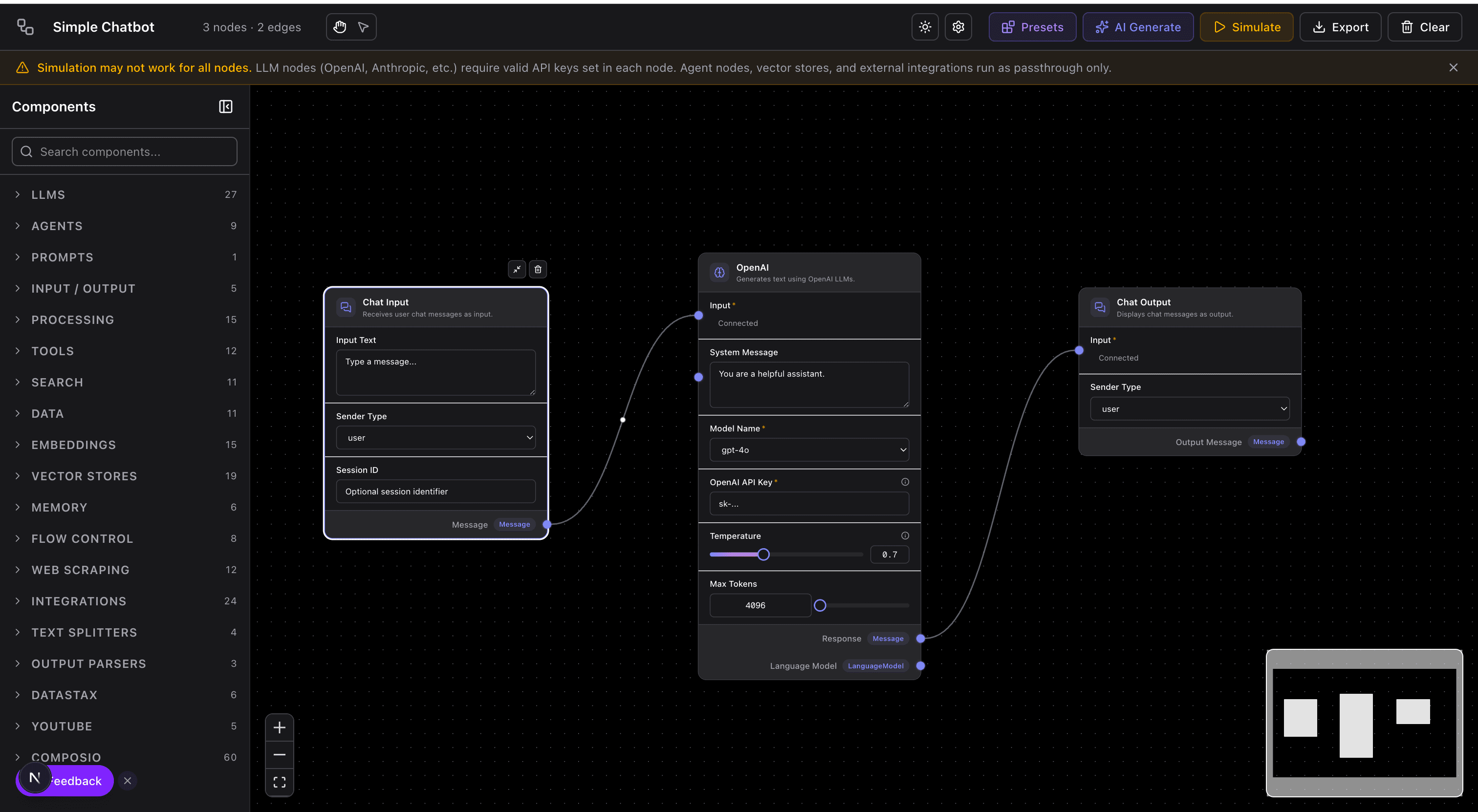
Visual agent workflows put that wiring back on the surface. Nodes are LLM calls, tool invocations, conditionals, loops. Edges carry typed data from one to the next. The graph is the program; the code is generated from it. This post is about when that's useful, when it's not, and what the AI Agent Editor does differently from LangGraph, n8n, and the other entrants in this space.
Why the chat loop stops scaling
A single-agent chat loop looks like this:
while True:
    response = llm.call(messages, tools=tools)
    if response.stop_reason == "end_turn":
        break
    for tool_call in response.tool_calls:
        result = execute_tool(tool_call)
        messages.append(tool_result(result))
Elegant. Reads like English. The model decides everything — which tool to call, when to stop, whether to continue.
Now add a constraint: the agent must not call the send_email tool without first getting human approval. You add an if-statement. Now add a second constraint: if the agent spends more than five turns on a single user message, pass the conversation to a more capable model. Another branch. Now add a parallel path: for one specific tool result, run a second agent in parallel that does independent analysis, then merge the outputs.
Each constraint is fine on its own. Stack four or five of them and the loop body is 300 lines. The control flow — the interesting architectural part — is buried in branching code that doesn't render as a diagram anywhere. Engineers ask "what does this agent do?" and you open the file and trace through it.
The graph as the program
A visual workflow editor flips the relationship. The graph is the source of truth; the runtime is an interpreter over it. You lay out nodes for each step, connect them, set parameters per node. The editor exports either a JSON description (for a runtime interpreter) or generated code (for running as a standalone script).
Core node types I've found you need for this to be useful:
- LLM call — model, system prompt, messages in/out, optional tools, optional structured output schema
- Tool call — a specific named tool with typed arguments; the edge carries the tool result
- Conditional — branches based on the value of an upstream output
- Loop — iterate over a list output; per-iteration state or accumulator
- Parallel — fan out to N branches, gather results, feed to downstream
- Human approval — pauses the graph, surfaces a prompt to a user, resumes on approve/reject
- Subgraph — a reusable bundle of nodes, usable as a single node inside a larger graph
With that set, most real agent architectures fit as graphs. The one I run in production most often is: a cheap router LLM classifies the request, routes to one of three specialized subagents, each of which has its own tool set, and the results get merged and summarized by a final writer node. That's six nodes and four edges in the editor, versus about 400 lines of Python if I hand-wrote it.
What the editor gives you that code doesn't
The graph format unlocks three things that matter operationally:
Visual inspection. When a teammate asks "what does this agent do?", you send them a link to the graph. They see the nodes and edges. They can click each node and see the system prompt, the tool list, the model. No code-reading, no tracing through async functions.
Per-node tracing. Every execution records inputs and outputs per node. When an agent produces the wrong final output, you replay the trace and step through each node's intermediate state. This is the same pattern as a datadog flame graph, applied to agent control flow. The alternative is scrolling through thousands of lines of JSON log.
Cheaper iteration. Swapping models, editing prompts, toggling tools — these are one-click changes on a node. Changes propagate to the running graph without a redeploy. In code, each change means restarting the process, losing intermediate state, re-running the expensive upstream LLM calls.
When visual is wrong
There are three places where code beats the graph and I've learned to stop trying to force it:
Tight single-agent loops. If your agent is just an LLM plus five tools, and the loop is the standard call-tool-loop shape, wrapping it in a graph editor is overhead without benefit. The chat loop is the right abstraction at that size.
Anything recursive or dynamic. If the agent might spawn subagents at runtime, and the number of subagents depends on the model's output, that can't be drawn as a fixed graph. You can represent it with a recursive subgraph node, but the ergonomics break down fast. Write it as code.
High-frequency production traffic. A graph interpreter adds overhead per execution. For low-traffic, internal-tooling use cases, nobody notices. For a user-facing endpoint doing 100 RPS, the interpreter tax is real, and the sensible move is to use the editor for design, then export compiled code for runtime.
Comparison: LangGraph, n8n, Dify
Three tools occupy adjacent space, and they make different tradeoffs:
LangGraph is code-first with a graph library. You define nodes and edges in Python. Visualization is generated from the code. This is good if your team already lives in Python and you want the graph mental model without a separate UI. It's less good if non-engineers need to inspect or modify the agent.
n8n is an automation platform first, with AI nodes retrofitted in. It's excellent for "when a thing happens in SaaS A, do a thing in SaaS B, with an LLM in the middle." It's less good for agent architectures that have loops, parallel evaluation, or tool-calling patterns that don't fit its connector model.
Dify is visual-first and chat-focused. It's strong for deploying an agent as a chatbot endpoint. Less flexible if you want the agent embedded in a larger application flow rather than being the application itself.
The AI Agent Editor sits closer to LangGraph in intent but closer to n8n in UX — visual first, exportable as code or as a runnable JSON description, built for developers who want to hand the graph to non-developers for inspection.
A worked example: support triage agent
Ticket arrives. An agent needs to classify it, pull relevant context from the docs and the knowledge base, draft a response, and — if the confidence is low — flag for human review. In code that's a 200-line async function. As a graph:
   [Ticket Input]
          │
          ▼
  [Classifier LLM]
   (returns category + confidence)
          │
          ├── confidence >= 0.8 ──▶ [Docs Retriever]
          │                               │
          │                               ▼
          │                        [Response Drafter LLM]
          │                               │
          │                               ▼
          │                        [Send Response]
          │
          └── confidence < 0.8 ──▶ [Human Review Queue]
Six nodes. Anyone on the support team can look at this and understand what happens to a ticket. The engineer who built it and the support lead who needs to adjust the classification threshold don't need to have the same vocabulary.
When a ticket is mishandled, I open the trace for that specific execution. I see which branch it took, what the classifier returned, what docs came back from retrieval. The fix is either a prompt edit on one node or a threshold change on the conditional. Neither requires a deploy.
Structured output: the quiet superpower
The thing that makes graph edges reliable is typed data on them. An LLM node that outputs free-form text is a graph you can't rely on — downstream nodes have to parse strings and defend against shape drift. An LLM node with a structured output schema emits a typed object, and downstream nodes can read specific fields.
The editor enforces this by letting you define an output schema per LLM node (JSON schema or Zod). Under the hood, this sets response_format: json_schema on OpenAI-compatible calls and output_config.format on Anthropic. If you're curious about the mechanics, the post on AI-powered diagramming walks through the same structured-output machinery applied to diagram generation.
Observability by default
Every run of the graph records: the inputs to each node, the outputs, timing, token usage per LLM call, and any tool call parameters and results. The record is per-run and queryable.
This matters more than it sounds. The hard part of running agents in production isn't building them — it's answering "why did it do this?" when something goes wrong. A chat-loop agent gives you the full conversation log and nothing else; a graph execution gives you per-node state, and you can pinpoint where the logic took the wrong branch.
Where to start
Open the AI Agent Editor and try the support-triage starter workflow. It's the example above, pre-built. Swap the classifier prompt, the retrieval source, or the response threshold to see how the graph reacts.
If you're comparing against a code-first framework, try porting one of your existing LangGraph or LangChain agents into the editor. The rough translation is usually one node per LangChain step, with the imperative control flow replaced by explicit edges and conditionals. Most of what took 200 lines of Python fits in 6–12 nodes.
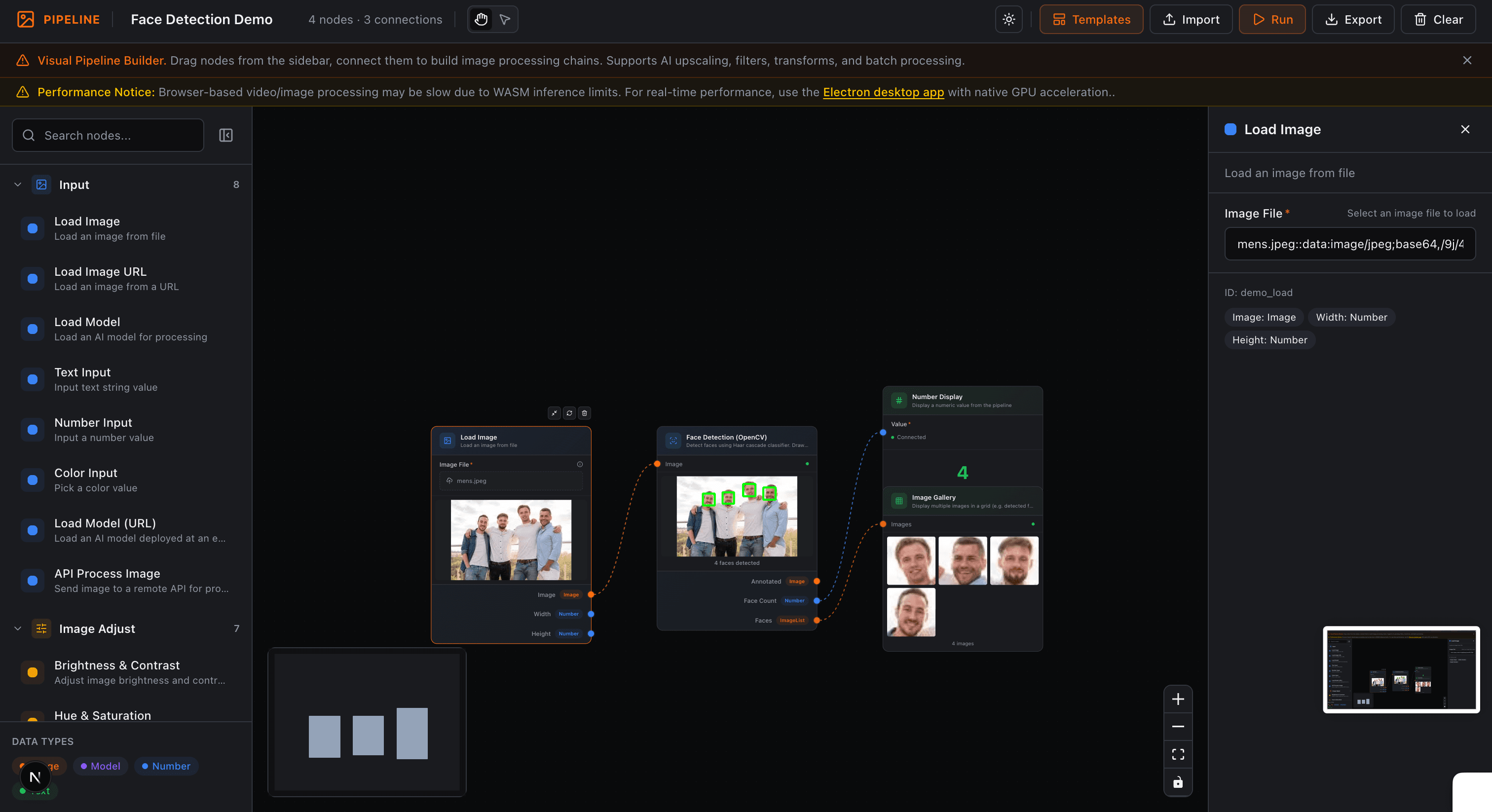
And if visual pipelines are new to you, the same mental model shows up in the Image Pipeline editor — same graph UX, different domain. The patterns carry over.
Try it yourself
Create diagrams instantly with AI Diagram — describe what you need and get a professional diagram in seconds.
Open Diagram EditorBuilder of CalcStack. Writes about software architecture, AI-assisted diagramming, and developer productivity. Follow on awais.calcstack.co.
Related articles