Node-Based Image Pipelines in the Browser: A chaiNNer Alternative
When to reach for a node-based image pipeline over Photoshop actions or a Python script — with a worked product-photo example, honest tradeoffs versus chaiNNer and ImageMagick, and what the AI upscale, background-remove, and denoise nodes are actually doing.
The first time I had to process two hundred product photos at once, I opened Photoshop, recorded a macro, and discovered two hours later that half the outputs were wrong because the macro had silently skipped layer effects on portrait-oriented shots. I finished the job with a forty-line Python script and ImageMagick. The script worked, but nothing about writing it was the part I wanted to get better at.
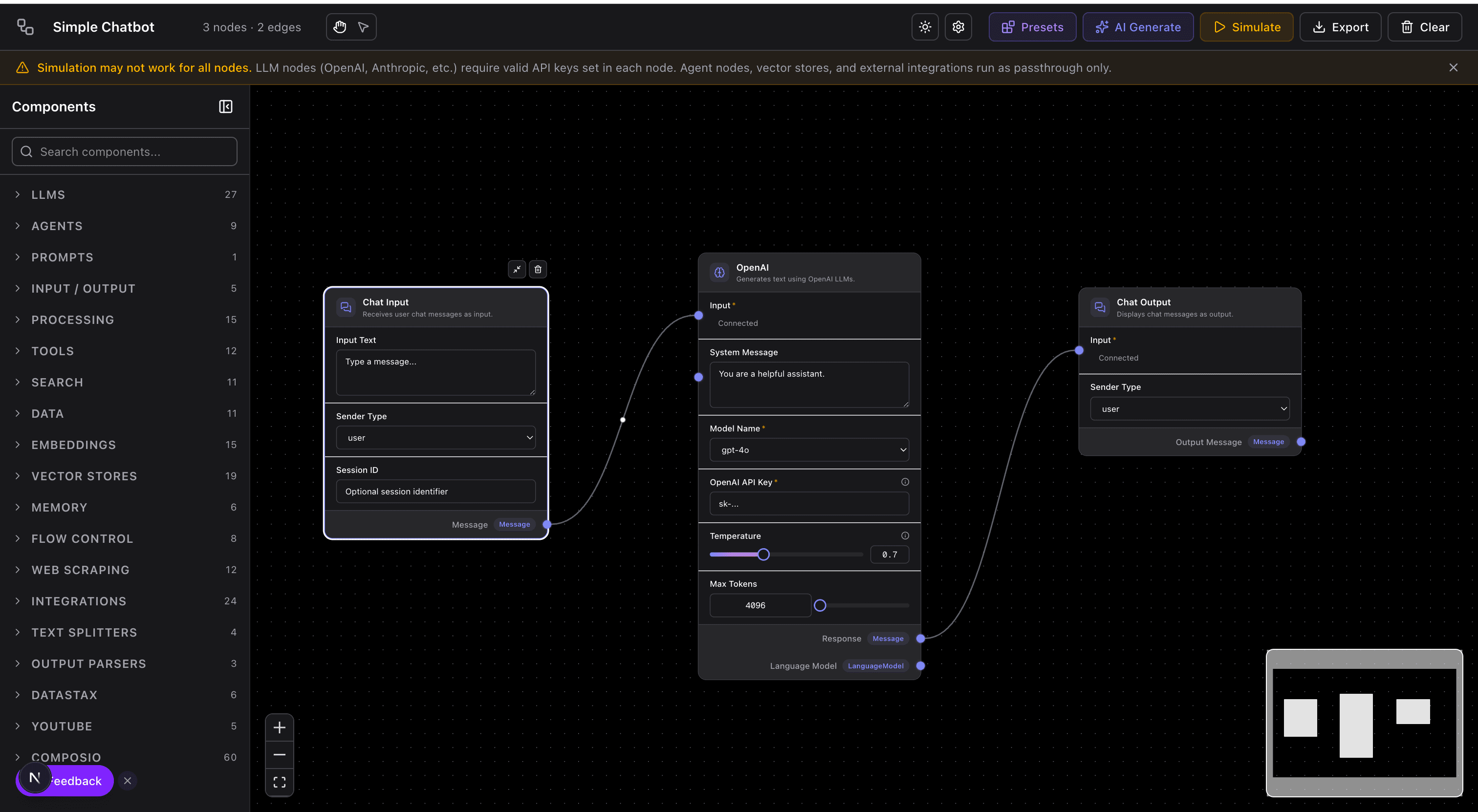
Node-based image pipelines sit between those two extremes. You build a directed graph of small, inspectable operations — load, resize, upscale, denoise, watermark, save — and the inputs flow through. You see each intermediate result without hunting through Photoshop's history, and you don't have to remember ImageMagick's flag syntax.
This post is about the pattern, when it's worth picking over a script or a GUI editor, and how the Image Pipeline editor implements it in the browser — including the tradeoffs versus desktop tools like chaiNNer that this was originally inspired by.
The shape of a node-based pipeline
A pipeline is a graph. Each node performs one operation on an image (or on the metadata about an image — crop coordinates, color histogram, filename pattern). Edges carry the output of one node into the input of another. Because the graph is acyclic, the runtime can evaluate nodes in topological order and cache intermediate results so an edit to a downstream node doesn't re-run upstream work.
That caching behavior is most of why the pattern works. A Photoshop action reruns the entire sequence every time you change one step. A script reruns from the top. A graph reruns only the affected subtree, which means you can tweak the watermark opacity on image 173 and see the result in a second instead of a minute.
The other thing that falls out of the graph structure: you can see what's happening. If the output looks wrong, you open the node that produces the wrong-looking intermediate and inspect it. In a script you'd add a print statement, save a debug file, and rerun.
When a pipeline beats a script — and when it doesn't
I've ended up with a rough test for whether a given task belongs in a pipeline editor:
- More than one operation — a single resize doesn't need a graph. Two or more steps, and the graph starts paying for itself.
- You iterate on the steps themselves, not just on the inputs. If the operations are fixed and you just point them at a new folder, a script is simpler.
- The intermediate results are interesting. If you care about what the image looks like after the denoiser but before the upscaler, you want to see it. A script would force a deliberate save-to-disk step.
- You'll hand it to someone who doesn't write code. Pipelines are readable without programming knowledge. Python scripts aren't.
Cases where a script still wins: batch jobs of thousands of files with predictable structure, anything that needs to run in CI, anything where you need the output to be deterministic across language runtimes. The Image Pipeline editor targets interactive work — designing and debugging the sequence — not production-scale batching. Once the pipeline is right, exporting it as a JSON description and running it from a script is straightforward.
What's in the editor
The node library covers the operations most image work actually needs, grouped by what they touch:
- Input / output: load from file, load from URL, save to disk, preview
- Geometry: resize, crop, rotate, flip, pad to aspect ratio
- Color: brightness/contrast, hue/saturation, levels, channel split/merge, grayscale, invert
- Filters: blur (Gaussian, box, motion), sharpen, unsharp mask, emboss, edge detect
- Compositing: overlay with blend mode, watermark, mask, alpha composite
- AI-assisted: upscale, background removal, denoise — running via WebGPU where the browser supports it, falling back to WASM on older hardware
Every node has a preview pane, so at any point you can click the node and see the image at that stage. When a parameter changes, only that node and its downstream neighbors rerun; the upstream chain stays cached.
A worked example: product photo normalization
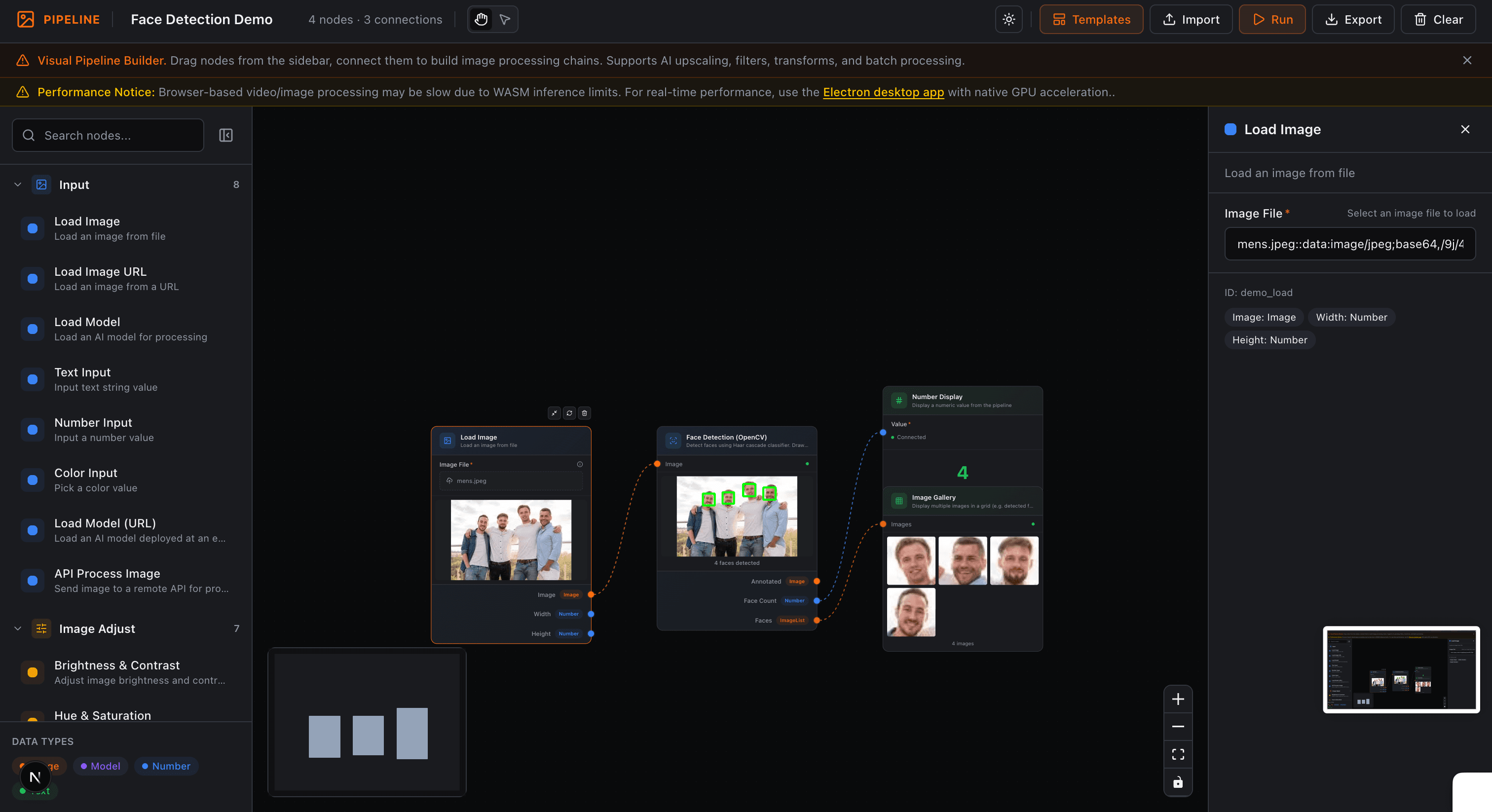
Say you're listing furniture on a marketplace that wants 1500×1500 square thumbnails with a white background, a subtle drop shadow, and a watermark in the bottom-right. The source photos are mixed: some portrait, some landscape, some already square, some shot against off-white walls.
The pipeline looks like this:
[Load Folder] ─▶ [Background Remove] ─▶ [Pad to Square]
                                          │
                   [Load: watermark.png] ──▶ [Composite (bottom-right)]
                                                         │
                                                         ▼
                                              [Drop Shadow]
                                                         │
                                                         ▼
                                              [Resize 1500×1500]
                                                         │
                                                         ▼
                                              [Save PNG]
Seven nodes. When I first built this, I got the composite position wrong — watermark was on top of the product, not tucked in the corner. I changed the position parameter, only the composite and two downstream nodes reran, and I saw the fix in about a second on a machine that would have taken thirty seconds to reprocess everything from the top.
That tight feedback loop is what moves a task from "finicky, avoid if possible" to "fine, I'll just do it."
Comparison: chaiNNer, Photoshop, ImageMagick
chaiNNer is the desktop tool that pioneered this UX for image processing. It's excellent at what it does, especially for AI upscaling pipelines, and if you're running heavy GPU workloads you probably want it. The browser version trades raw throughput for zero install, shareable pipelines (the graph is just JSON), and the ability to paste URLs instead of managing local files. For the kind of multi-step normalization most design and marketing work needs, those tradeoffs are usually worth it.
Photoshop's Actions are the closest first-party equivalent. The problem with Actions is that they're linear and opaque — if something goes wrong partway through, you don't see the intermediate state. Smart Objects help, but only if you set them up in advance, and they don't solve the "rerun only what changed" problem.
ImageMagick is the ancestor. It's fast, it's scriptable, and every time I have to look up its flags I lose twenty minutes. For one-shot operations over large folders, it's still the right tool. For iterative design work, a node graph is kinder.
The AI nodes — what they're actually doing
Three of the node categories are worth a closer look because they behave differently from the traditional ones.
Upscale. A classical resize (bicubic, Lanczos) interpolates new pixels from existing ones. An AI upscaler has seen millions of image pairs and predicts what plausible higher-resolution pixels would look like. For photographs the gain is obvious. For flat illustrations or logos, a classical upscale is often closer to what you want — the AI model invents texture that shouldn't be there. The editor exposes both and lets you swap them by replacing one node.
Background removal. The model is running a segmentation network (variants of U²-Net and newer successors) in the browser via WebGPU. It's genuinely fast — 200–400ms per image on modern hardware — and accurate enough for 90% of product-photography cases. Hair-fine edges and glass objects still trip it. For those, I run the model and then manually clean up the mask in a compositing node before continuing.
Denoise. For photo denoising, an AI model outperforms classical filters (bilateral, non-local means) on detail preservation. For synthetic images — screenshots, vector exports — the classical filters are actually better because they don't hallucinate texture into smooth regions.
Running in the browser
All compute happens client-side. No image leaves the browser unless you explicitly save to a remote location. That's a constraint as much as a feature — big models run more slowly than they would on a dedicated GPU workstation — but it means client work, product photos under NDA, and personal photos never touch a server.
The runtime uses WebGPU where available and falls back to WebAssembly on browsers that don't support it yet. Most operations work without either — the classical filters run on the CPU through a Web Worker, keeping the main thread responsive so the graph stays interactive while images process.
Sharing and exporting pipelines
Every pipeline serializes to a JSON document. You can copy the URL to share a read-only view, fork it into your own workspace, or export the JSON and run it in a build script. That last part is what makes the editor useful for more than one-off work — once a pipeline is correct, you can hand the JSON to a colleague or drop it into CI.
The structural similarity to the AI Agent Editor isn't an accident. Both are graph editors over typed inputs and outputs, both run incrementally, and the mental model — "design the dataflow, inspect the intermediate values" — is shared across the two products.
The honest limitations
Image pipelines are a bad fit when you need pixel-perfect retouching (use Photoshop), when you need to process tens of thousands of images at once in a tight loop (use Sharp or ImageMagick on a server), or when the operation is fundamentally linear and has one parameter to tune (just use the CLI flag).
They're the right tool for what I think of as "careful batch" work — tens to low hundreds of images, multiple coordinated operations, parameters you expect to iterate on, and a need to see what's happening at each stage. That covers a surprising amount of the actual image work most teams end up doing.
Where to go from here
Open the Image Pipeline editor and run the starter pipeline against a few of your own images. The starter is the product-normalization example above, pre-wired — you can swap nodes, adjust parameters, and watch the recompute stay local to the parts you touched.
If you're thinking about visual pipelines for non-image work — agent orchestration, data transforms — the AI Agent Workflows post covers the same graph pattern applied to LLM calls and tool chains. The UX primitives are remarkably transferable.
Try it yourself
Create diagrams instantly with AI Diagram — describe what you need and get a professional diagram in seconds.
Open Diagram EditorBuilder of CalcStack. Writes about software architecture, AI-assisted diagramming, and developer productivity. Follow on awais.calcstack.co.
Related articles