How to Build Effective Resume Layouts
What I learned from screening several hundred resumes as a hiring manager — the 7-second scan pattern, ATS parsing gotchas, section ordering by career stage, and the layout choices that quietly kill strong candidates.
A friend of mine — strong engineer, solid resume on paper — applied to sixty companies last year and heard back from four. We sat down and looked at her resume. It was dense, centered, used a creative two-column layout, and listed skills as progress bars. All of that felt modern. All of it was actively hurting her.
We rewrote the layout over an afternoon. No content changes — same experience, same achievements, same degree. Just structural work: single column, left-aligned, F-pattern visual hierarchy, ATS-safe fonts. She went from a 7% response rate to ~30% within a month. That gap was pure layout.
This article is the short version of what we changed, why it matters, and what I now tell every friend asking me to review their resume.
The 7-second scan is real
Eye-tracking research from TheLadders and follow-up studies at recruiting platforms consistently put the initial scan at 7–8 seconds. In that window, recruiters aren't reading — they're pattern-matching against a mental template of where information should live. Your name, title, and one-line summary at the top. Section headers down the left edge. Company names in bold. Dates on the right.
When your resume matches that template, recruiters find what they need in 7 seconds and decide to read further. When it doesn't — too dense, non-standard layout, critical information buried — they bail. Your content never gets evaluated.
This is the core insight: layout isn't cosmetic. It's a recognition system. The more your resume matches the template, the more of its content actually gets read.
The F-pattern, and what to put at each stop
Recruiters scan in an F-shape: a horizontal sweep across the top, a shorter horizontal sweep a third of the way down, then a vertical scan down the left edge, with occasional right-reaches when something catches their eye.
Top horizontal (most attention): name, current or target title, a one-line summary. The single most important real estate on the whole page. If the recruiter is hiring for “Senior Data Engineer” and this line doesn't contain a relevant keyword within three words, they may already be moving on.
Second horizontal (moderate attention): first entry under your top section. For a mid-career person, this is your current job's company name and role. For a recent graduate, it's your degree and school. Make it land.
Left vertical (scanning for landmarks): section headers. These need to be visually distinct so the eye can navigate: bold, larger font, enough whitespace above them that they read as boundaries. Fail this and the recruiter can't find the section they want.
The four rules that matter most
1. Single column, left-aligned
Two-column resumes feel modern and fail for two reasons. Recruiters scan the F-pattern; two columns disrupt it. And — more seriously — most ATS parsers read columns as if they were a single flow from top-left to bottom-right, mangling the text order into garbage. Your beautifully formatted two-column PDF arrives in the ATS as “Senior Engineer 2022 Present Led design reviewed code Bachelor Computer Science Stanford 2018 2022” — unparseable. Stick to single column.
2. Three font sizes, not five
Name (18–24pt), section headers (12–14pt), body text (10–11pt). That's your whole typographic hierarchy. Adding more sizes for subheaders, emphasis, or dates fragments the page visually. Use weight (bold) and spacing to create secondary hierarchy within those three sizes.
3. Whitespace is not wasted
The instinct is to cram more content in by tightening margins and spacing. It backfires every time. A dense resume reads as exhausting before the recruiter reads a single word. Keep 0.5"–1" margins, ~1.2 line height, and 12–16px between sections. If you're running out of room, cut content — don't cut whitespace.
4. Everything lines up
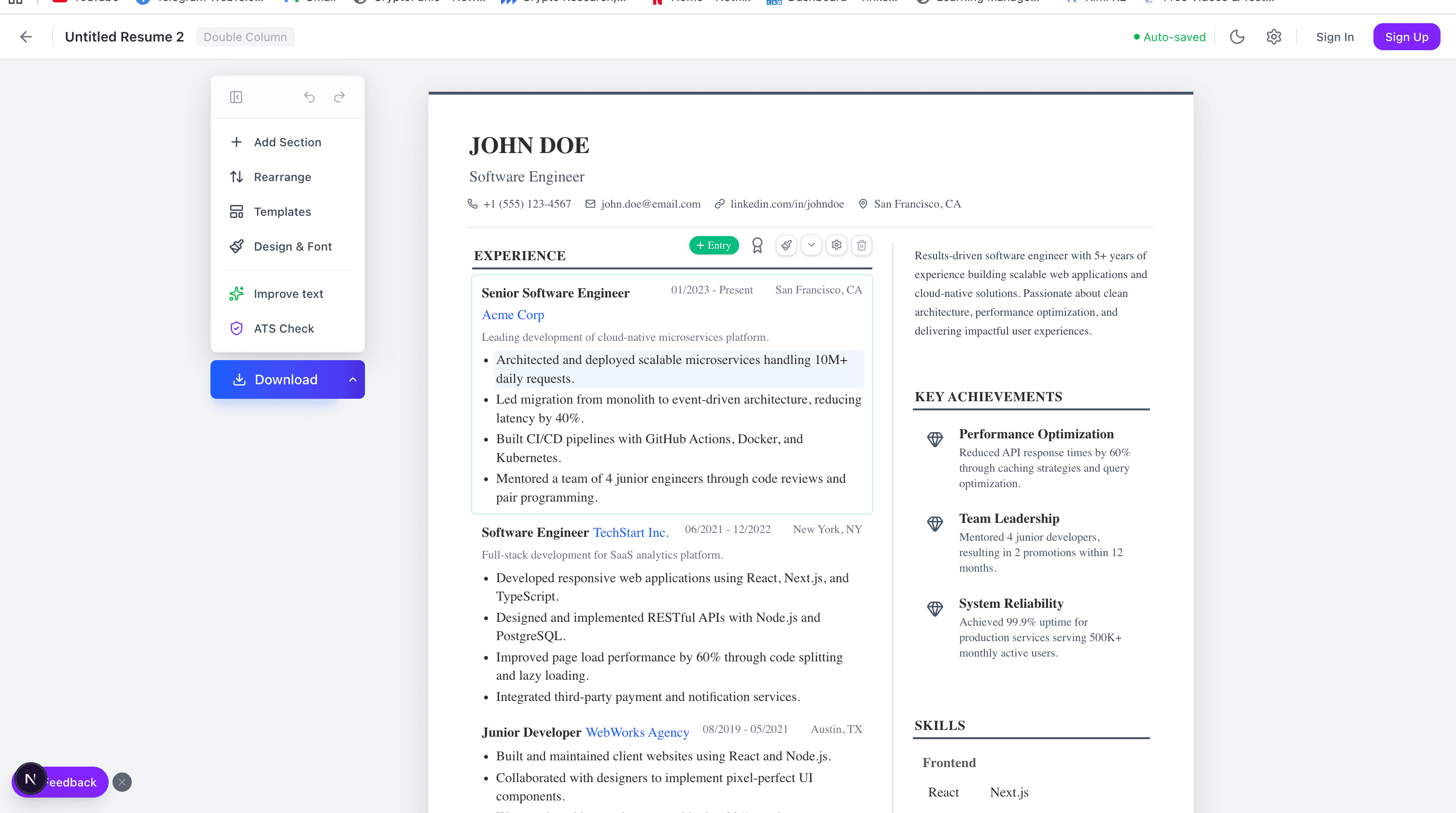
Bullet indentation consistent across sections. Dates aligned to the right margin in every entry. Bold used the same way in every entry (e.g., always on company name, never on job title). Even readers who couldn't articulate it register alignment consistency as “professional”, and misalignment as “sloppy”. Our resume builder enforces this automatically, which removes an entire category of errors most people never realize they're making.
ATS: design for the machine too
Large companies route applications through Applicant Tracking Systems that parse your resume into structured fields before a human ever sees it. If the ATS can't extract your name, email, work history, and skills cleanly, you may be filtered out before review. Common ATS killers:
- Multi-column layouts. Already covered — these get read in wrong order.
- Text embedded in images or icons. ATS reads only actual text. Your name rendered as a logo is invisible to it. Skill icons without accompanying text don't count as listed skills.
- Tables for layout. Some ATS parse tables correctly, most don't. A single invisible table cell with critical information can get dropped entirely.
- Non-standard fonts. PDFs can embed fonts, but not all ATS extract text from embedded fonts cleanly. Stick to Arial, Calibri, Helvetica, Garamond, or Georgia.
- Creative section headers. “My Journey” instead of “Experience”. “What I Bring” instead of “Skills”. Humans find these charming. ATS rules can be keyed to the literal header name and miss sections with creative alternatives.
- Headers and footers. Many ATS strip these. Putting contact info in a header is a classic way to end up filed without a phone number.
Always submit as PDF unless the application explicitly asks for Word. PDF preserves your layout across operating systems and handles ATS better than Word in my experience.
Section ordering, actually applied
The correct order depends on which credential is strongest for the role you're applying to, not a one-size template.
Recent graduate (0–2 years experience)
Contact → Summary → Education → Projects → Experience (if any) → Skills. Education leads because it's your strongest credential. Projects come before sparse work experience because they show applied skill.
Mid-career (3–10 years)
Contact → Summary → Experience → Skills → Education. Experience becomes the lead. Education drops to the bottom — it matters less once you have a track record, and recruiters at this level scan past it quickly to get to work history.
Senior / executive (10+ years)
Contact → Executive Summary → Key Achievements → Experience → Education → Publications / Boards. Cap detailed experience at the last 10–15 years; earlier roles get a one-line entry each. The full 25-year history is flattering to you and noise to the recruiter.
Career changer
Contact → Summary (explicitly bridging the transition) → Relevant Skills → Projects / Certifications → Experience → Education. The summary has to do heavy lifting: it explains why your previous experience matters for the new field, so the recruiter has a frame when they reach the experience section. Without that bridge, your experience reads as irrelevant.
Bullet points that actually work
The default bullet — “Responsible for managing the customer database” — tells the reader nothing. Strong bullets follow a specific pattern:
[Strong verb] + [what you did] + [quantified impact].
Weak: “Worked on improving the checkout flow.”
Strong: “Redesigned checkout flow, reducing cart abandonment by 23% and increasing monthly revenue by $180k.”
Not every bullet will have a clean number — sometimes you have impact without metrics, or metrics you can't share. That's fine. But aim to have numbers on at least half your bullets. Numbers stand out visually and signal that you understand business impact.
Two to three lines per bullet, maximum. If it's longer, you're combining two achievements into one bullet — split them.
Mistakes I see in almost every resume I review
- Photo or headshot. In the US, UK, Canada, and Australia, this invites unconscious bias against you and wastes space. (Different conventions apply in parts of Europe and Asia — check local norms.)
- Skill progress bars. What does “Python: 4 out of 5 dots” mean? Nothing the reader can rely on. It also takes ATS-readable content (the skill name) and buries it in decorative graphics. List skills as plain text.
- Objective statements. “Seeking a challenging role at a dynamic company” is a 1990s artifact. Replace with a summary that says what you bring and what you're good at.
- Inconsistent date formats. Pick one — I use “Jan 2023 – Present” — and use it everywhere. Mixing “January 2023”, “01/23”, and “2023” reads as careless.
- More than one page for under ten years of experience. If you're padding to two pages, something on page one isn't earning its place.
- Every bullet starts with “Responsible for”. Job descriptions are about responsibility. Resumes are about what you did with that responsibility. Lead with verbs of action: built, launched, shipped, reduced, grew, led, negotiated.
- Typos. The one unforgivable error. I've seen senior candidates lose offers over a single typo in the headline. Proofread, have someone else proofread, read it aloud.
The tooling problem
Most people build resumes in Word or Google Docs, manually fighting margins and tab stops. This is how the misalignment-between-sections bug happens, because you're maintaining the structure by hand instead of letting a system enforce it.
A structured resume builder — ours included — solves this by separating content from layout. You fill in the content (experience, skills, education), and the layout template handles spacing, alignment, typography, and ATS-safe structure underneath. The visual output is what you'd have produced manually in Word if you'd been perfectly disciplined, but without the discipline burden.
For one-off tweaks you can still override specific styles. For everything else the template prevents the mistakes that catch everyone eventually. You can try our resume builder — it's free, produces clean ATS-friendly PDFs, and applies the rules from this article by default.
The short version
Single column, left-aligned. Three font sizes. Generous whitespace. Consistent alignment. Standard section headers. One page under ten years of experience. Strong verbs, quantified impact, no progress bars, no photo, no typos. Sent as PDF.
Do those ten things and your resume will pass every ATS and survive the 7-second scan. The rest is content — which is important, but only gets evaluated if the layout gets you past the first filter. Make the layout do its job and let the content do the rest.
Try it yourself
Create diagrams instantly with AI Diagram — describe what you need and get a professional diagram in seconds.
Open Diagram EditorBuilder of CalcStack. Writes about software architecture, AI-assisted diagramming, and developer productivity. Follow on awais.calcstack.co.
Related articles